How to Share the Wi-Fi Password Easily from Device to Device

In this article, we explain how to share Wi-Fi passwords in different situations on different devices. How you share the Wi-Fi password is going to depend on a couple of things: the level of security you need to have over your Wi-Fi, the proximity of sharing, and how often you need to share your password.
It’s easy to give the password verbally to a friend every couple of months, but 60 times/day in your café is another story. Similarly, if you have a Wi-Fi set up for the front of the house in your café and keep a separate, secure connection for the back of the house, then you can feel safer in your decision to freely share the Wi-Fi password with patrons directly.
When dealing with the most secure business settings, the simplest solution is also the most secure: a password manager. Password managers allow you to share Wi-Fi passwords as well as all the other passwords you need across your team in a safe and secure manner. This is where TeamPassword comes in.
Teams sharing passwords will become increasingly common as organizations move toward more remote settings across various locations. TeamPassword’s password managers retain trust by enabling teams (up to fifty users per account) to share passwords while safeguarding confidential credentials and driving productivity within organizations.
Start a trial today to empower your teams with comprehensive password management.
Table of Contents
How to share your Wi-Fi on iPhone, iPad, or Mac
You can share Wi-Fi passwords among Apple devices easily. Depending on how modern your operating system is, you have a couple of options.
Option 1: View and Copy the Password (iOS 16+ / macOS Ventura+)
Since iOS 16 and macOS Ventura, Apple users no longer have to rely solely on proximity sharing. You can now simply view, copy, and paste the actual Wi-Fi password directly from your device.
- Go to your device's Settings and tap Wi-Fi.
- Tap the blue "i" (information) icon next to the network you are currently connected to.
- Tap the hidden "Password" field.
- After authenticating via FaceID, TouchID, or your passcode, the password will be revealed in plain text.
- Copy it and share it securely via your preferred method.
Option 2: Apple Proximity Sharing
If you want to use the classic Apple proximity feature, be sure that your guest is in your contacts and that you are in their contacts as well. Your iPhone needs to be running iOS 11 or newer.
- Make sure that both devices have their Wi-Fi and Bluetooth turned on. Then, confirm that Personal Hotspot is turned off. Be sure the other device is unlocked and nearby.
- Your device must be connected to the network you wish to share.
- Your guest can now select your Wi-Fi network from the list of nearby networks.
- You should get a prompt asking if you wish to share the Wi-Fi password with the device.
- Finally, tap Share Password.
How to Share Your Wi-Fi on Android
Make sure that your devices are running Android 10 or later. Note that not all Androids have the exact same Settings menu, so you might find things are worded slightly differently on your device.
Option 1: QR Code & Plain Text Sharing
The good thing about learning this system is that it can be used to share your Wi-Fi with Apple and Windows devices as well.
- Go to Settings, Network, and Internet (this is sometimes called Connections), and then Wi-Fi.
- Click the cog next to your connected Wi-Fi network.
- Next, press the Share icon. After verifying your identity (PIN or fingerprint), you will see a QR code on the screen. Note: On most modern Android devices, the Wi-Fi password will also be displayed in plain text directly beneath the QR code!
- Have your guest scan the QR code with their default camera app (on iPhone or Android) or simply read them the plain text password.
Option 2: Quick Share (Android to Android)
If you are sharing with another Android user, you don't even need them to scan your screen.
- Follow the steps above to get to the QR code screen.
- Tap the Quick Share (formerly Nearby Share) button located near the QR code.
- Select your guest's device from the pop-up menu to beam the Wi-Fi credentials directly to their phone.
QR Code Generator Safety
In the past, many guides recommended using third-party websites or downloading apps to generate QR codes for Wi-Fi sharing. This is no longer recommended. Pasting your network name and password into a random third-party website or app is a major security risk.
Thankfully, modern devices handle this natively without requiring extra software.
Option 1: Native Android Generation
As outlined in the Android section above, Android 10+ has QR code generation built right into the native Wi-Fi settings.
Option 2: Apple Shortcuts App
If you are an iOS user and want to generate a printable QR code for your guest network, you can use the native Apple Shortcuts app. Open the app, search the gallery for the built-in "Make QR Code" shortcut, and select "Set up a wireless network" to generate a secure code directly on your device.
How to Find Your Wi-Fi Password on Windows
Microsoft scrapped the old "Wi-Fi Sense" sharing feature due to security concerns. Today, the easiest thing to do is look up the password and share it securely. How you do this depends on your version of Windows.
Option 1: The Modern Windows 11 Method
In Windows 11, the legacy Control Panel features have been streamlined into the modern Settings app.
- Click the Windows icon and open Settings.
- Navigate to Network & internet > Wi-Fi.
- Click on Manage known networks.
- Select your Wi-Fi network from the list.
- Next to the "Wi-Fi security key," click the View button to reveal your password in plain text.
Option 2: The Old Windows 10 Control Panel Method
If you are on an older build of Windows 10, you may need to use the legacy Control Panel route.
- Click on the Windows icon, go to Settings, and choose Network & Internet.
- Go to the Status tab and then select Network and Sharing Center.
- Click on Connections: Wi-Fi.
- Choose Wireless Properties in the pop-up window.
- Select the Security tab, and finally check the Show Characters box under the Network security key.
Why Can’t I Share Passwords via Email or Messenger?
Simply put, sharing passwords over email or chat is dangerous because the messages might not be end-to-end encrypted. That means someone could eavesdrop on the conversation and then use your login credentials.
While not every way of sharing a password listed below is dangerous, the others can be frustratingly slow or require more effort than is necessary.
- Written notes: While a written note could be safe, you have to have a lot of faith in the chain of custody. After you give the password away, are you confident that the receiver will shred and dispose of the piece of paper safely? If not, it might be best to avoid sharing your Wi-Fi password this way.
- Emails and text messages: As mentioned above, these messages can be sent as plain text, which means that anyone who intercepts the message will be able to see your password.
- Text files and spreadsheets: Having a shared document could be safe—if you password protect the document and keep that password safe. But, if your organization is keeping their passwords in a spreadsheet, it is a safe bet that the spreadsheet is also not optimally protected.
- Verbal communication: Yes, it is reasonably safe to share Wi-Fi passwords verbally, and this isn’t too much of an encumbrance when you have a friend visit your home once in a while. However, this eats up valuable time when repeated across your organization many times every day.
How to share a password with TeamPassword
Having strong passwords is a given, but if you share passwords via unsecured routes, you are trading one vulnerability for another. Indeed, most teams make obvious mistakes when sharing passwords.
The best way to secure your IT infrastructure is to use a password manager that includes sharing features. A password manager like TeamPassword offers high-level encryption and two-factor authentication so that only the right people can make sense of the passwords.
Before anyone can access the list of shared passwords, they must log in to the platform using their personal password and a short-term authentication code.
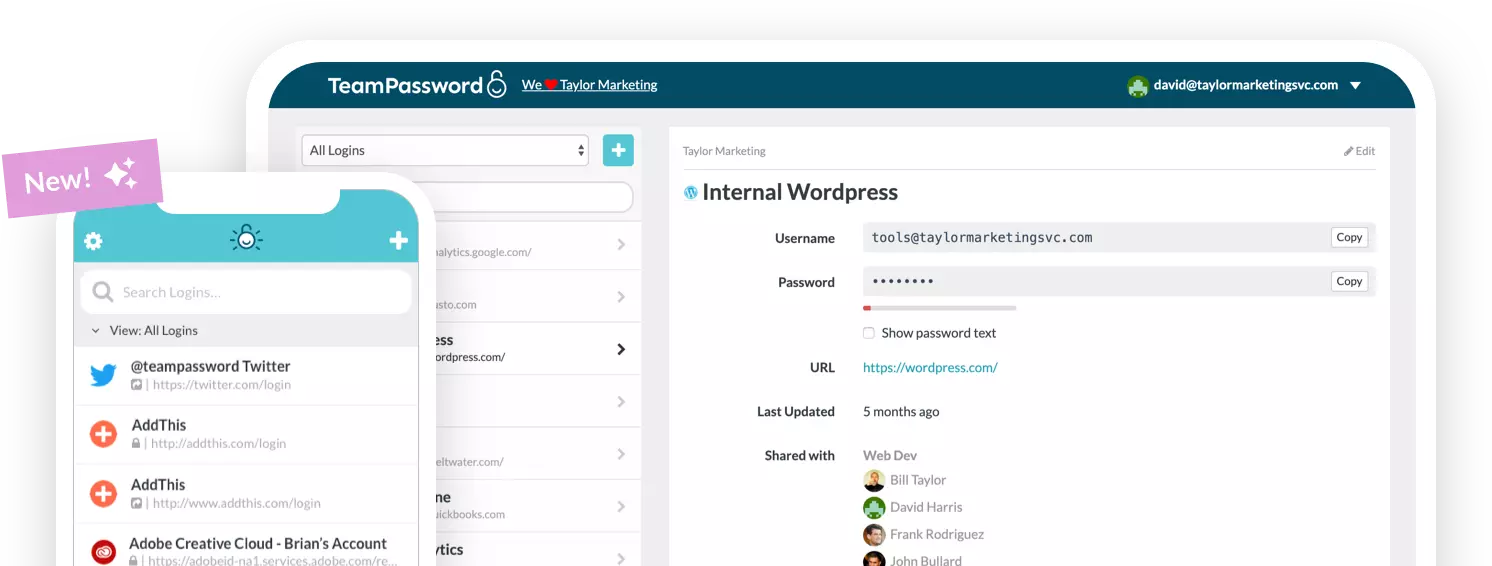
Teams often need to share passwords to access mutual accounts including Wi-Fi. However, you don't have to put your data at risk to make this possible. You can use TeamPassword to securely generate, store, and share Wi-Fi passwords within a team.
TeamPassword's One-time share feature let's you send an encrypted, self-destructing link to someone outside your TeamPassword vault.
If you’re unsure where to begin, sign up for a TeamPassword free trial to secure your shared passwords once and for all.
おすすめの記事
The Database Behind Every Camera on Your Street
An explanation of the security implications of Flock Safety's interconnected database that's sweeping the nation.
Facebook Hacks: a History of Security Breaches at Facebook and Meta
Facebook has exposed millions of users' personal information over the years. Learn how to protect your company from ...
The Scariest Data Breaches of All Time
Learn what the scariest data breaches of all time are and how can you protect your data from ...
Top 10 cybersecurity threats for nonprofits (and how to prevent them)
Here’s what you need to know about cybersecurity threats for nonprofits, the top risks they face, and practical ...